Google Apps Script: `Those rows are out of bounds.` error
those rows are out of bounds. error with practical examples, diagrams, and best practices. Covers google-apps-script, google-sheets development techniques with visual ex...Categories:
Troubleshooting 'Those rows are out of bounds.' in Google Apps Script

Understand and resolve the common 'Those rows are out of bounds.' error when working with Google Sheets in Google Apps Script, covering common causes and robust solutions.
The 'Those rows are out of bounds.' error is a frequent stumbling block for developers using Google Apps Script to interact with Google Sheets. This error typically occurs when your script attempts to access or manipulate a range of cells that does not exist within the sheet's current dimensions. This article will delve into the common scenarios that trigger this error and provide practical, robust solutions to help you write more resilient Google Apps Script code.
Understanding the 'Out of Bounds' Error
At its core, the 'out of bounds' error means your script is asking Google Sheets to do something with a row or column index that is outside the valid range of the sheet. For example, if a sheet only has 10 rows, and your script tries to read data from row 11, you'll encounter this error. This can happen for various reasons, including:
- Empty Sheets: Attempting to get the last row or column of an entirely empty sheet often returns
0, which is not a valid starting index for a range (which typically starts at1). - Incorrect Range Calculations: Miscalculations when determining the start row, start column, number of rows, or number of columns for a
Rangeobject. - Dynamic Data Changes: The sheet's data size changes between when your script calculates a range and when it tries to apply an operation to it.
- Off-by-One Errors: A common programming mistake where an index is slightly incorrect, leading to an attempt to access a non-existent row or column.

Common scenarios leading to 'out of bounds' errors
Common Scenarios and Solutions
Let's explore specific situations where this error arises and how to address them effectively.
Scenario 1: Empty Sheet or No Data
When a sheet is completely empty, sheet.getLastRow() and sheet.getLastColumn() will return 0. If you then try to create a range like sheet.getRange(1, 1, sheet.getLastRow(), sheet.getLastColumn()), it will result in an error because you're asking for a range of 0 rows or 0 columns starting at row 1 or column 1.
function processDataFromSheet() {
  const ss = SpreadsheetApp.getActiveSpreadsheet();
  const sheet = ss.getSheetByName('MyDataSheet');

  if (!sheet) {
    Logger.log('Sheet not found!');
    return;
  }

  const lastRow = sheet.getLastRow();
  const lastCol = sheet.getLastColumn();

  // Problematic code if sheet is empty
  // const range = sheet.getRange(1, 1, lastRow, lastCol);
  // const values = range.getValues();

  // Corrected approach:
  if (lastRow === 0 || lastCol === 0) {
    Logger.log('Sheet is empty or has no data. No range to process.');
    return []; // Return an empty array or handle as appropriate
  }

  // Now it's safe to get the range
  const range = sheet.getRange(1, 1, lastRow, lastCol);
  const values = range.getValues();
  Logger.log('Processed ' + values.length + ' rows.');
  return values;
}
Handling empty sheets before attempting to get a range
getLastRow() or getLastColumn() return 0 before attempting to create a Range object. If they are 0, it means the sheet is empty, and you should handle this case gracefully (e.g., return early, log a message, or initialize the sheet).Scenario 2: Incorrect Range Parameters
The getRange() method has several overloads, but the most common one is getRange(row, column, numRows, numColumns). If any of these parameters are invalid (e.g., row or column is 0, or numRows or numColumns is 0 or negative, or the end of the range exceeds the sheet's actual dimensions), you'll get the error.
function copyPartialData() {
  const ss = SpreadsheetApp.getActiveSpreadsheet();
  const sourceSheet = ss.getSheetByName('Source');
  const destSheet = ss.getSheetByName('Destination');

  if (!sourceSheet || !destSheet) {
    Logger.log('One or both sheets not found!');
    return;
  }

  const sourceLastRow = sourceSheet.getLastRow();
  const sourceLastCol = sourceSheet.getLastColumn();

  // Ensure there's data to copy
  if (sourceLastRow === 0 || sourceLastCol === 0) {
    Logger.log('Source sheet is empty.');
    return;
  }

  // Example: Copying only the first 5 rows, or fewer if the sheet has less than 5
  const rowsToCopy = Math.min(5, sourceLastRow);
  const colsToCopy = sourceLastCol; // Copy all columns

  // Problematic if rowsToCopy or colsToCopy ends up being 0 or negative
  // const sourceRange = sourceSheet.getRange(1, 1, rowsToCopy, colsToCopy);

  // Corrected approach: Validate parameters before creating the range
  if (rowsToCopy <= 0 || colsToCopy <= 0) {
    Logger.log('Calculated range dimensions are invalid.');
    return;
  }

  const sourceRange = sourceSheet.getRange(1, 1, rowsToCopy, colsToCopy);
  const values = sourceRange.getValues();

  // Ensure destination sheet has enough space or handle appending
  // For simplicity, let's assume we're writing to the first available row
  destSheet.getRange(destSheet.getLastRow() + 1, 1, values.length, values[0].length).setValues(values);
  Logger.log('Copied ' + values.length + ' rows.');
}
Validating range parameters before creating a Range object
numRows or numColumns, ensure they are always positive integers. Using Math.max(1, value) can be a useful trick if you intend to always select at least one row/column, but be careful not to exceed the sheet's actual dimensions.Scenario 3: Appending Data to a Sheet
When adding new rows, you typically use sheet.appendRow(rowContents) or sheet.getRange(sheet.getLastRow() + 1, ...).setValues(). The latter approach can cause issues if getLastRow() returns 0 (for an empty sheet), leading to getRange(1, ...) but then trying to write 0 rows of data, or if the numRows parameter is incorrect.
function appendMultipleRows() {
  const ss = SpreadsheetApp.getActiveSpreadsheet();
  const sheet = ss.getSheetByName('AppendSheet');

  if (!sheet) {
    Logger.log('Sheet not found!');
    return;
  }

  const dataToAppend = [
    ['New Value 1A', 'New Value 1B'],
    ['New Value 2A', 'New Value 2B']
  ];

  if (dataToAppend.length === 0) {
    Logger.log('No data to append.');
    return;
  }

  const startRow = sheet.getLastRow() + 1;
  const numRows = dataToAppend.length;
  const numCols = dataToAppend[0].length;

  // Problematic if startRow is 0 (e.g., if sheet.getLastRow() returns -1 for some reason, though it usually returns 0 for empty)
  // Or if numRows or numCols is 0
  // sheet.getRange(startRow, 1, numRows, numCols).setValues(dataToAppend);

  // Corrected approach:
  // Ensure startRow is at least 1
  const actualStartRow = Math.max(1, startRow);

  // Ensure numRows and numCols are positive
  if (numRows <= 0 || numCols <= 0) {
    Logger.log('Data to append has invalid dimensions.');
    return;
  }

  sheet.getRange(actualStartRow, 1, numRows, numCols).setValues(dataToAppend);
  Logger.log('Appended ' + numRows + ' rows starting at row ' + actualStartRow + '.');
}
Safely appending multiple rows of data
sheet.appendRow(rowContents) is generally safer and simpler. For multiple rows, calculate startRow as sheet.getLastRow() + 1 and then use getRange().setValues(), ensuring numRows and numCols are correct based on your data array.General Best Practices to Avoid 'Out of Bounds' Errors
Adopting these practices can significantly reduce the occurrence of 'out of bounds' errors:
- Always Validate
getLastRow()andgetLastColumn(): Before using these values to construct a range, check if they are0. If so, handle the empty sheet scenario. - Use
getDataRange()for Existing Data: If you intend to work with all existing data in a sheet,sheet.getDataRange()is often safer than manually calculatinggetLastRow()andgetLastColumn(), as it automatically adjusts to the actual data boundaries. - Be Mindful of
offset(): When usingrange.offset(rowOffset, columnOffset, numRows, numColumns), ensure the resulting range is still within the sheet's boundaries. ThenumRowsandnumColumnsparameters ofoffsetdefine the new size of the range, not just the offset. - Test with Edge Cases: Always test your scripts with empty sheets, sheets with a single row/column, and sheets with large datasets to catch potential issues.
- Use Logger.log() for Debugging: Log the values of
lastRow,lastCol, and yourgetRange()parameters to understand what values your script is using when the error occurs. - Consider
sheet.getMaxRows()andsheet.getMaxColumns(): These methods return the total number of rows/columns available in the sheet, which can be useful for validating that your calculated range does not exceed the sheet's capacity, especially when inserting or deleting rows/columns.
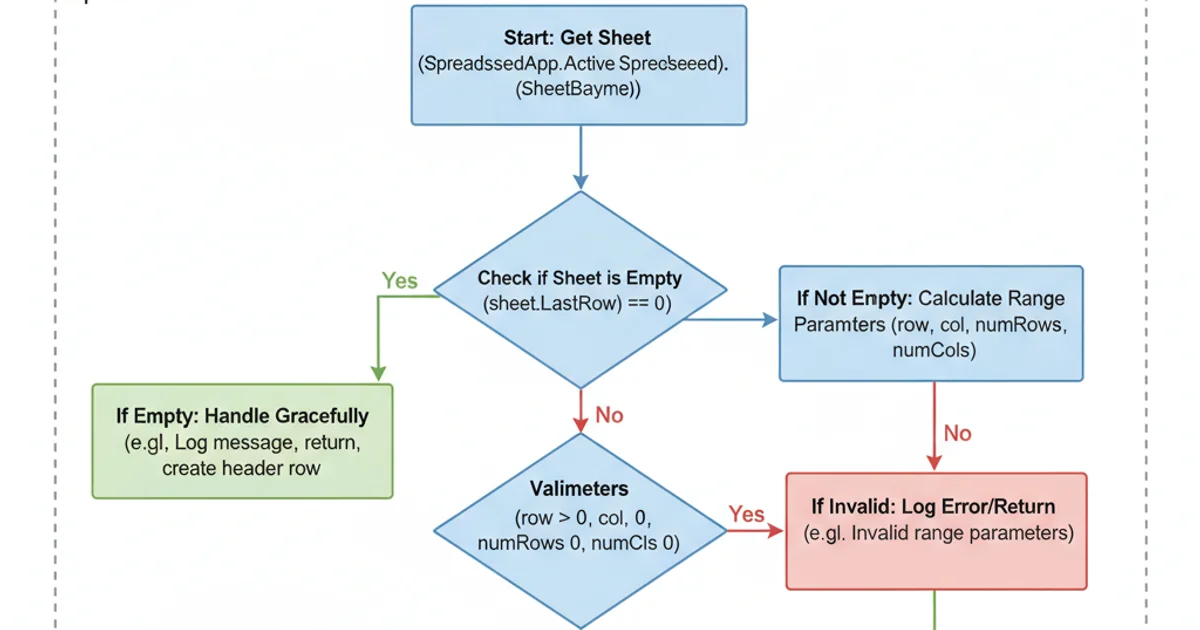
Recommended workflow for robust range operations
By systematically checking for empty sheets, validating range parameters, and using appropriate methods like getDataRange(), you can significantly reduce the likelihood of encountering the 'Those rows are out of bounds.' error and build more reliable Google Apps Script solutions for Google Sheets.