Listing only directories using ls in Bash?
Categories:
Listing Only Directories with ls in Bash

Learn various methods to filter ls output to display only directories, enhancing your command-line efficiency in Bash.
When working in the Bash command line, the ls command is fundamental for listing files and directories. However, its default output can often be cluttered with files when you're only interested in navigating or managing directories. This article explores several effective techniques to use ls (and related commands) to display only directories, making your terminal interactions cleaner and more focused.
Understanding the Challenge
The ls command, by default, lists all entries in a given path – files, directories, and symbolic links. While options like -F can append indicators (e.g., / for directories, * for executables), they don't filter the output. Our goal is to achieve a listing that exclusively shows directory names, similar to how you might browse a file system visually, but from the command line.
flowchart TD
    A[Start] --> B{"Need to list directories only?"}
    B -->|Yes| C{Choose Method}
    C --> D[Method 1: `ls -d */`]
    C --> E[Method 2: `find . -maxdepth 1 -type d`]
    C --> F[Method 3: `ls -l | grep "^d"`]
    D --> G[Review Output]
    E --> G
    F --> G
    G --> H[End]
Decision flow for listing directories in Bash
Method 1: Using ls -d */
This is often the simplest and most direct approach. The * is a glob pattern that matches any file or directory. When followed by a /, it specifically matches only directories. The -d option to ls tells it to list the directory entries themselves, rather than their contents.
ls -d */
Basic usage of ls -d */ to list directories.
*/ to a list of all directory names before ls even sees the command. If there are no directories, the shell might pass */ literally to ls, which would then report an error. To prevent this, you can set shopt -s nullglob in Bash, which makes patterns that match nothing expand to nothing.Method 2: Using find Command
The find command is a powerful utility for locating files and directories based on various criteria. It offers more flexibility and robustness, especially in directories with many entries or complex naming conventions.
find . -maxdepth 1 -type d -print0 | xargs -0 ls -d
Using find to list directories in the current directory.
Let's break down the find command options:
.: Specifies the starting directory (current directory).-maxdepth 1: Limits the search to the current directory only, preventingfindfrom descending into subdirectories.-type d: Filters the results to include only directories.-print0: Prints the full file name on the standard output, followed by a null character. This is crucial for handling filenames with spaces or special characters.xargs -0 ls -d:xargstakes the null-terminated output fromfindand passes it as arguments tols -d. The-0option ensuresxargscorrectly interprets the null-terminated input.
Method 3: Filtering ls -l Output with grep
Another common approach involves using ls -l (long listing format) and piping its output to grep to filter for lines that start with 'd', which signifies a directory in the long listing output.
ls -l | grep "^d"
Filtering ls -l output using grep.
grep might misinterpret, or if you have aliases that modify ls output. For simple cases, it works, but ls -d */ or find are generally more robust.Comparing the Methods
Each method has its strengths and weaknesses. Choosing the right one depends on your specific needs and the context of your script or command-line interaction.
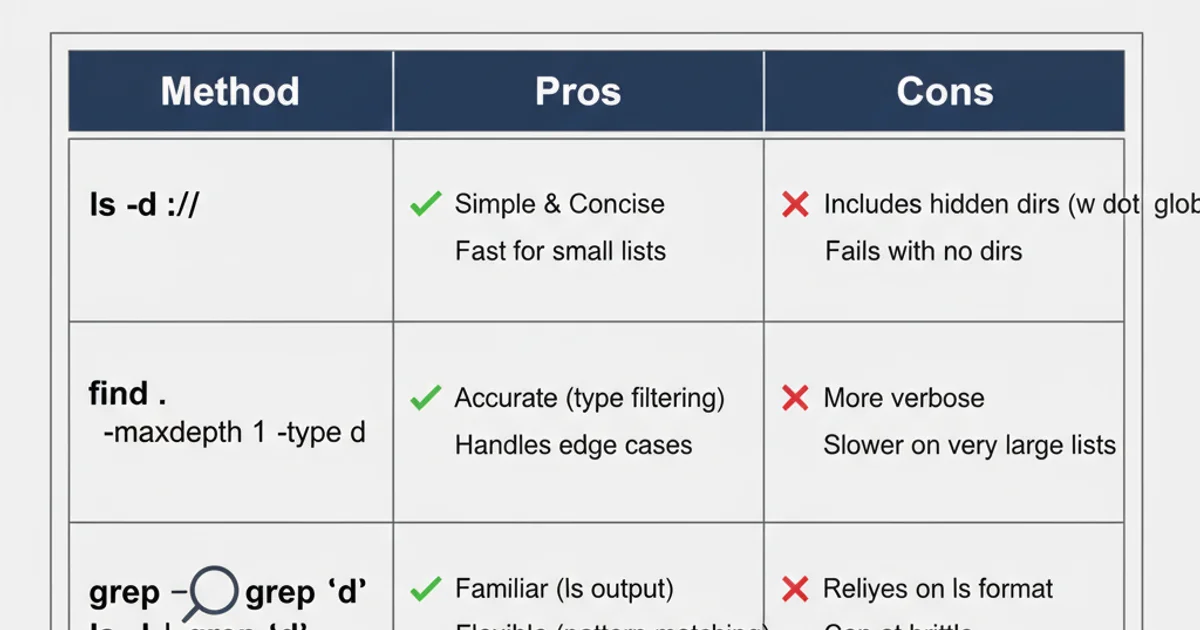
Comparison of directory listing methods
For most interactive uses, ls -d */ is quick and easy. For scripting or when dealing with complex filenames, find offers superior reliability and flexibility. The grep method is a quick hack but less robust.